
Arduino Development with VS Code and ISP Programming
I’ve worked on multiple Arduino projects, so I’ve spent a bit of time figuring out a good workflow to edit my code in Visual Studio Code instead of Arduino IDE, and then use it to load the code to the chip using an ISP (in-circuit programming) header.
Why Visual Studio Code?
Arduino IDE works for tiny projects, but it doesn’t have all the productivity tools I’m used in Visual Studio Code like the autocomplete and git integration.
The "Arduino Community Edition" (forked from the deprecated Arduino extension from Microsoft) does most of the heavy lifting for a standard workflow with an Arduino development board. You’ll have menus in the status bar to choose the right programmer and board like in the Arduino IDE, and you can also download libraries from Visual Studio Code.
The only thing you’ll want to add is autocomplete: when importing an external library you’ll need to adjust the paths in the includePath of the c_cpp_properties.json file generated by the extension to point to the directory containing the library.
- Tip: If you have an old install of the extension, the previous version uses Arduino IDE 2.0, while the new one uses a bundled version of Arduino CLI. When I upgraded both my Arduino IDE to 3.0 and the extension, the extension stopped working since it was now pointing to 3.0. You’ll need to change the settings of the extension to use the built-in Arduino CLI so it works again.
Why ISP?
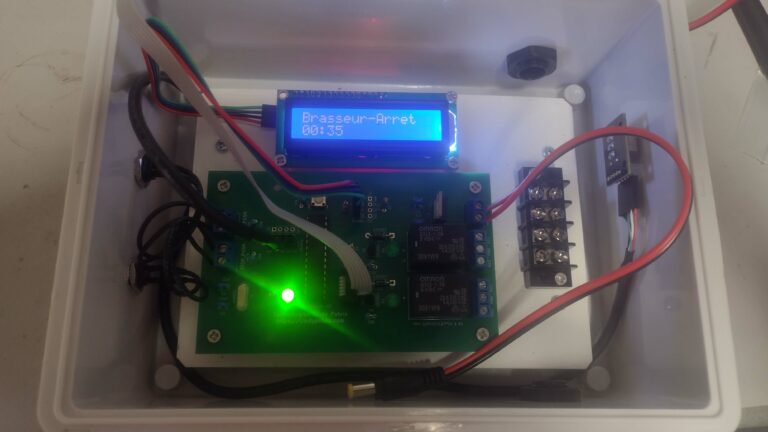
For Arduinos, I like to build out a custom PCB once I have the basic design since it's more stable than a bunch of cables, and it brings you right away closer to testing the real thing.
ISP is easier at this point than an USB connector since it doesn’t require having an USB to serial chip, it’s just an extra header. The debugging experience is not as good, but for a simple project but you can still access the serial pins as needed if the project doesn’t have a screen to debug on. Also, when I create a prototype board, I make sure to always expose at the very least the I2C and serial pins just in case I end up needing them as the design evolves. They can be stripped out later when the design is stable and the board is ready to optimize for a larger-scale production.
Programming with ISP
Programming with ISP is not as seamless as programming an Arduino development board. VSCode only has support for programming with a serial port, which is the standard method used for development boards that comes with a USB cable and a USB to serial chip.
I also tried working with the Arduino IDE on the side and use it only for programming, but it doesn’t detect changed files. I would have to reload the whole project each time, which took way too long.
To work around this, I installed the Arduino CLI so I could do everything from the VSCode terminal window.
The very first time you use a chip, you’ll need to program the bootloader using the following command. This step is already done for you if you’ve purchased an Arduino board, but not if you’re buying your own chips.
In my case, I’m using the same chip as an Arduino Uno so I put that in as the board name and I’m using a USBTinyISP programmer for the in-circuit programming part, but you can substitute for any supported Arduino board name (some are installed separately, but Arduino Uno is built-in).
arduino-cli burn-bootloader --fqbn arduino:avr:uno -P usbtinyisp -vOnce the bootloader is loaded, I use the two following commands to build the sketch and then upload it to the chip. I like to use the verbose version of the command so I can see that something is going on. Make sure to save before building so you're really uploading the latest version.
arduino-cli compile --fqbn arduino:avr:uno -v
arduino-cli upload --fqbn arduino:avr:uno --programmer usbtinyisp -v
Here you go, a simple workflow to both work in Visual Studio Code and upload code to your chips using ISP.